How to turn an iPad into a looping video kiosk
· Trystero Montevideo · 10base-t interactive
An iPad makes an excellent video display. It's thin, quiet, bright, easy to mount, and it runs for hours on battery or all day on power. Prop one up in a trade show booth, a shop window or on an open house welcome table, and it can play your product videos, property tours or artwork on a loop while you talk to people. The catch is that an iPad is designed to be used, not left alone: it locks itself, visitors tap on it, and the built-in apps aren't made to loop a playlist forever. A few settings and the right app fix all of that.
TL;DR • iPad Video Kiosk
- Use an app built for unattended playback, with looping playlists, a kiosk mode and a password lock
- Turn on Guided Access so visitors can't leave the app or change settings
- Keep the iPad on power, and set Auto-Lock so the screen never sleeps
- Store your videos on the iPad itself, so the display works without Wi-Fi
- Use an adapter or AirPlay to show the same loop on a TV or projector
What do you need?
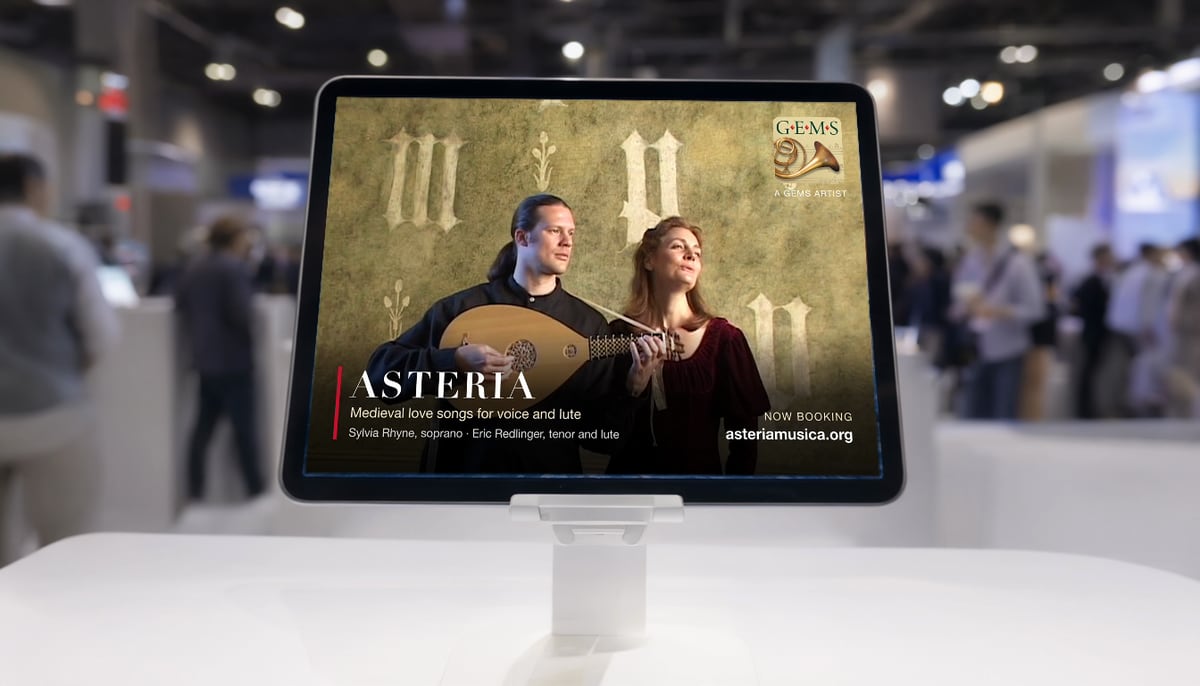
- An iPad (an iPhone works for small displays). Any recent model is fine; brightness and screen size matter more than speed.
- A stand or mount. A floor stand or a locking enclosure for a booth, a tabletop stand for a counter.
- Power. A loop that runs all day needs the charger connected. The iPad's battery covers a few hours if you can't reach an outlet.
- Your videos, on the device. Copy them to the iPad before the event. Venue Wi-Fi is often slow or crowded, so we recommend never relying on streaming for a display.
- A playback app that loops a playlist, hides its controls and can be locked.
Which app should play the videos?
The Photos app can loop a single video, and there are many free "looper" apps that repeat a clip. Both are designed for someone holding the device. For a display nobody is watching over, look for:
- Playlists that loop continuously, so several videos play in order and start again without a tap
- A kiosk or presentation mode that hides playback and editing controls
- A password lock, so a curious visitor can't delete or rearrange your videos
- Branding, such as your logo over the video or a title card between clips
- External display support, with overscan adjustment for TVs that crop the edges of the picture
- Offline playback with no account, so nothing depends on the venue's network or a cloud service
Our own app, Video Playlist Manager, was built for exactly this, and does all six. Digital signage services are the other route: they're designed for fleets of screens managed from the cloud and usually charge a monthly subscription per screen. In our view that's worth it for a chain of stores, and more than most booths and showrooms need.
How do you lock the iPad to one app?
Guided Access is built into iPadOS and keeps the iPad in a single app until you end the session with a passcode. Visitors can't swipe home, open Control Center or switch apps.
- Open Settings, tap Accessibility, then Guided Access, and turn it on.
- In Passcode Settings, set a Guided Access passcode you'll remember.
- Set Display Auto-Lock to Never, so the screen stays on during the session.
- Open your playback app, start the playlist, then triple-click the top button (or the Home button on older iPads) to start Guided Access.
To end the session, triple-click again and enter the passcode. Apple's Guided Access guide covers every option. For many iPads managed by an IT team, the equivalent is Single App Mode, set through device management software.
Settings worth checking before the doors open
- Auto-Lock: Settings, Display & Brightness, Auto-Lock, set to Never (Guided Access has its own Auto-Lock setting too).
- Brightness: turn it up and switch off Auto-Brightness if the venue lighting changes during the day; trade show halls are bright.
- Notifications: turn on a Do Not Disturb Focus so messages and banners don't appear over your video.
- Sound: decide whether the loop should play audio. In a busy hall, captions burned into the video usually work better than sound.
- Updates: turn off automatic iPadOS updates for the event day, so the iPad doesn't restart overnight.
Prepare your videos
Videos recorded on an iPhone, and most MP4 and MOV files, play on an iPad without conversion. If a file won't import or play, convert it to MP4 (H.264) with the free, open source HandBrake transcoder. Export at the iPad's screen resolution or at 1080p; larger files only use more storage. Keep each clip short, since visitors walking past rarely watch more than 20 or 30 seconds, and put your name or logo on screen in every clip, or let the app overlay it for you.
Show it on a bigger screen
An iPad can drive a TV, monitor or projector through a USB-C or Lightning video adapter, or wirelessly with AirPlay to an Apple TV. A cable is more reliable for an all-day display. Some TVs crop the edges of the picture (overscan), cutting off logos and captions; an app with overscan controls lets you shrink the picture to fit.
Frequently asked questions
Can an iPad play videos on a loop all day?
Yes, as long as it's connected to power and Auto-Lock is set to Never. A playback app with continuous looping restarts the playlist automatically, and Guided Access keeps the iPad in that app.
Does an iPad video kiosk need Wi-Fi?
No. Store the videos on the iPad and use an app that plays them offline. We recommend this even when Wi-Fi is available, because venue networks are often unreliable.
How do I stop people from closing the app?
Turn on Guided Access in Settings, Accessibility, and start a session from inside your playback app. Leaving the app then needs your Guided Access passcode. Add the app's own password lock, if it has one, so playlists can't be edited either.
What's the difference between a looper app and a kiosk app?
A looper app repeats a clip for someone holding the device. A kiosk app is built for a screen nobody is watching over: playlists, hidden controls, password protection, branding and external display output.
Which app should I use to loop videos on an iPad?
We make Video Playlist Manager, a one-time purchase for iPad and iPhone with looping playlists, Kiosk mode, password lock, logo overlays and external display support, and no subscription or account. You can test it with the free Lite version, which plays up to 10 videos without looping.